
Fix 1: Check your cable connections
- Take a look at where you've connected your monitor to your PC.
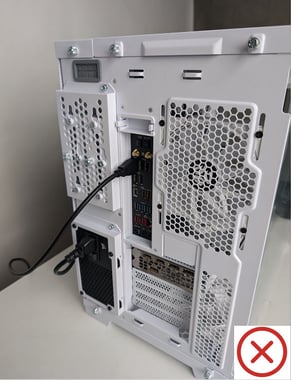
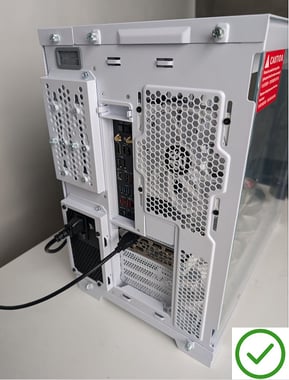
- Ensure the cable (HDMI, DisplayPort) that connects your monitor to your PC is connected to the Graphics Card and not the Motherboard.
- If uncertain you can refer to Figures 1 & 2 below that show the wrong and right location.
Fix 2: Test your display cable
- Try a different HDMI cable or DisplayPort cable. A monitor with no signal could be caused by a faulty or damaged cable.
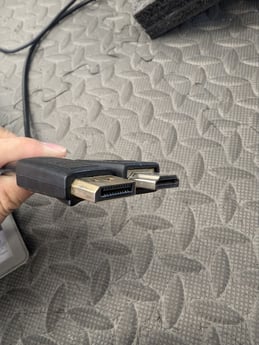
DisplayPort and HDMI cables
Fix 3.1: Try a different port on your monitor
- Most monitors come with more than one input port.
- Try to connect your PC to each port on the monitor. This helps identify a faulty port on your monitor.
- Pro Tip: Ensure that you select the correct input source on your monitor each time you connect your PC to a different port!
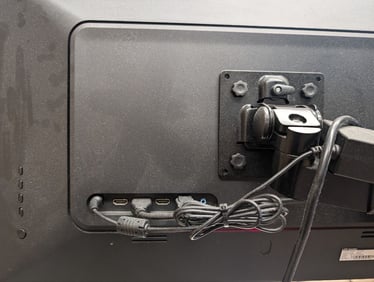
Your monitor may have more than one input port
Fix 3.2: Try a different port on your monitor
- Similar to Fix 3.1, most graphics cards come with more than one output port.
- Try to connect your monitor to each port on the graphics card. This helps identify a faulty port on your graphics card.
- Pro Tip: Remember to restart your computer after switching to a different port! This ensures that the default display output is correctly set to the graphics card if you accidentally booted up using your motherboard's display output.
Fix 4: Try a different monitor
- If you have a different monitor, try connecting your PC to that monitor instead. A faulty monitor could be the reason why there is no display.
Fix 5: Bring it in
If all else fails, we may need to take a closer look at your PC to properly diagnose the fault and resolve the issue.
Don't worry, we're more than happy to help you get back on your feet.
Simply use one of the links below to book the appropriate appointment:
- Showroom carry-in appointment
- On-site servicing appointment, fees may apply.
- Collection service, fees may apply.